Photo Migrate
New in 1.3: OneDrive

Your photos,
ferried anywhere.

Photo Migrate moves photos and videos between your iCloud library, Google Photos, Dropbox, OneDrive, USB drives, NAS shares and folders. Any direction. Streamed one at a time from your iPhone, iPad or Mac, so you never need space for everything.
Download on the App Store Free for your first 100 photos.
One-time $2.99 for unlimited. No subscription.
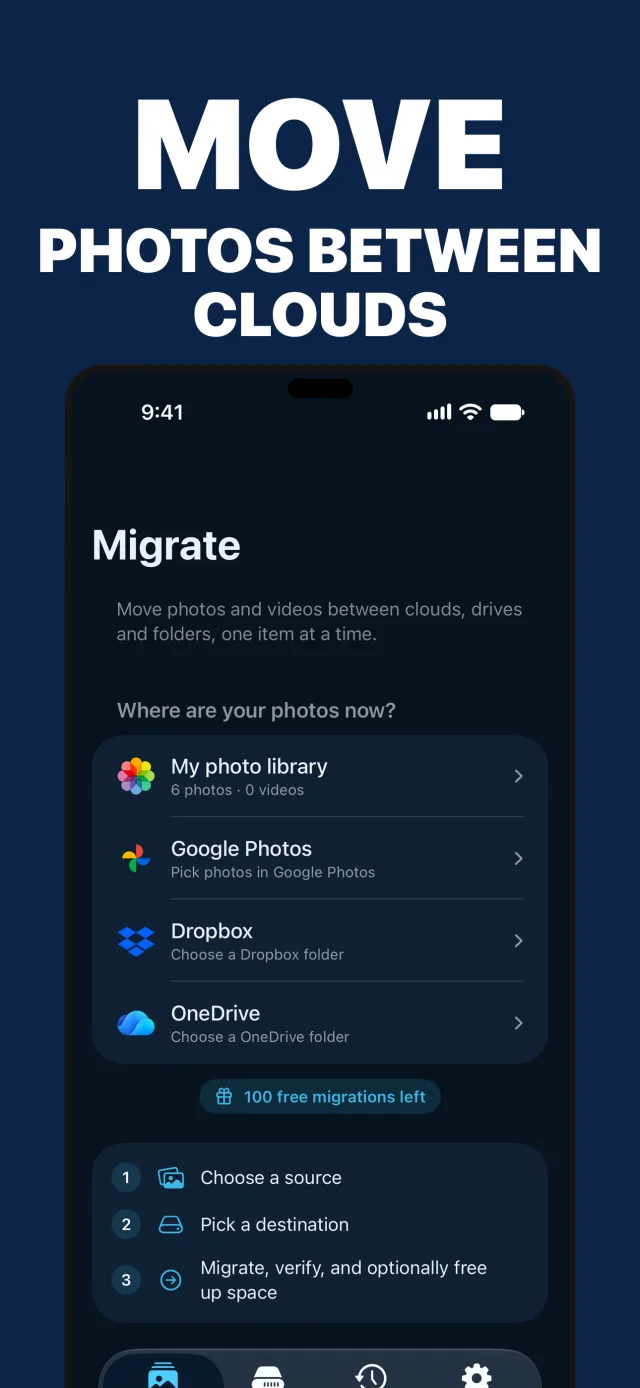
Photo Migrate on iPhone: the Migrate tab offers your photo library, Google Photos, Dropbox and OneDrive as sources

Departures

Every route sails both ways

Pick a source and a destination. Photo Migrate carries your photos across, keeps their original dates, and groups them in a “Photo Migrate” album or folder at the other end.

FromToStatus
iCloud Photos⇄Google PhotosSailing
iCloud Photos⇄DropboxSailing
iCloud Photos⇄OneDriveNew
Google Photos⇄DropboxSailing
Google Photos⇄OneDriveNew
Dropbox⇄OneDriveNew
iCloud Photos→USB drive · NAS · folderSailing
Google Photos→USB drive · NAS · folderSailing
Dropbox→USB drive · NAS · folderSailing
OneDrive→USB drive · NAS · folderNew

USB drives plug straight into your iPhone, iPad or Mac. NAS shares mount through Files ▸ Connect to Server.

The crossing

Three steps, no bulk download

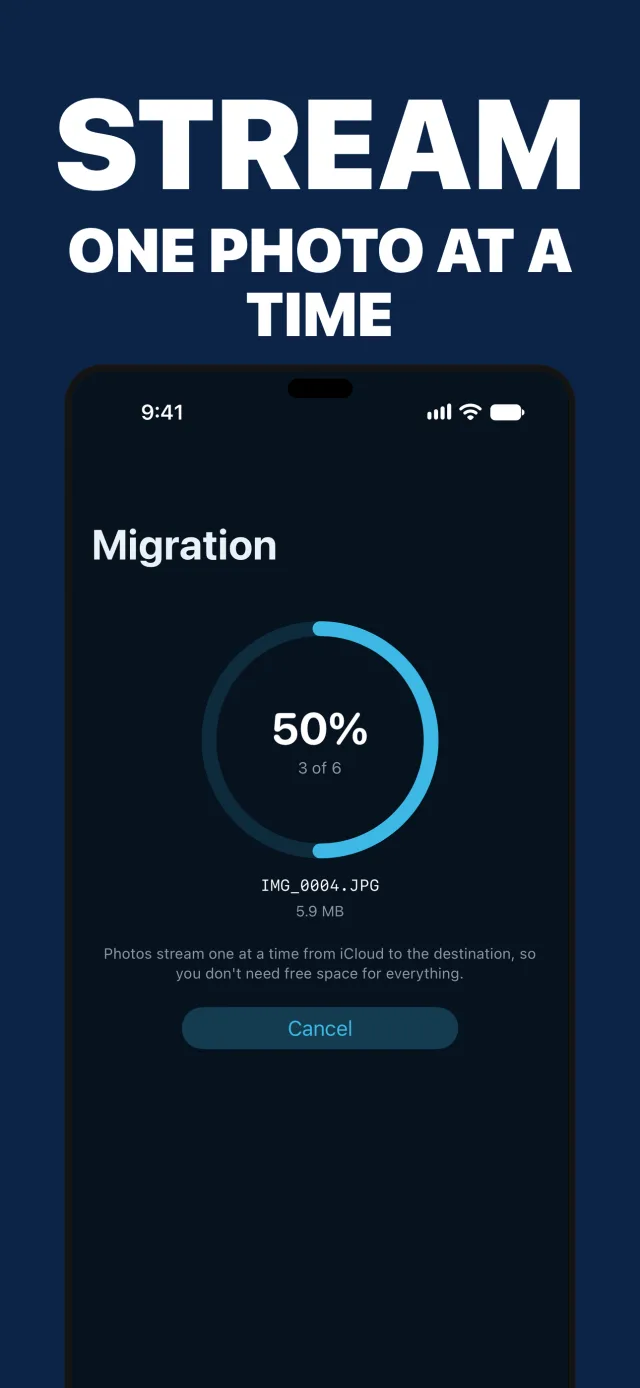
Each photo streams individually from the source to the destination, so a full library fits through a phone with almost no free space.

STEP 1

Choose a source

Your photo library, Google Photos, or a Dropbox or OneDrive folder. Migrate everything, an album, a date range, or hand-pick photos one by one.

STEP 2

Pick a destination

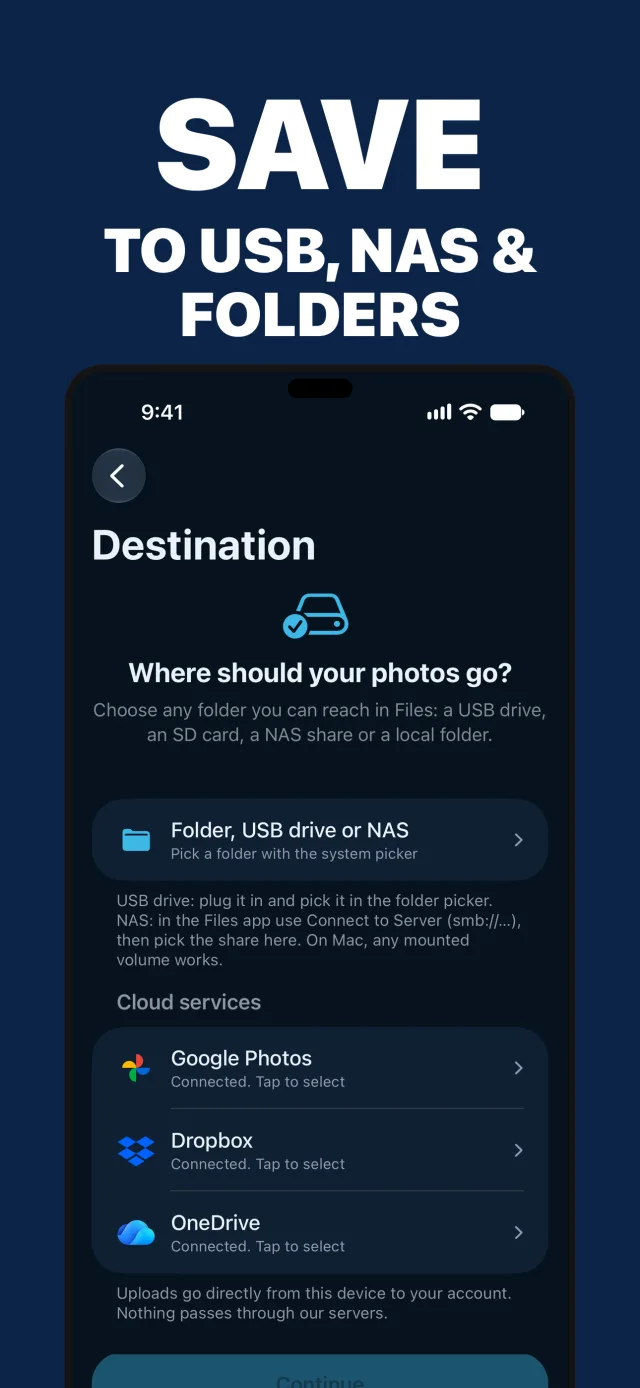
Any other service, or a USB drive, SD card, NAS share or folder. Organized flat, by year, or by year and month.

STEP 3

Migrate and verify

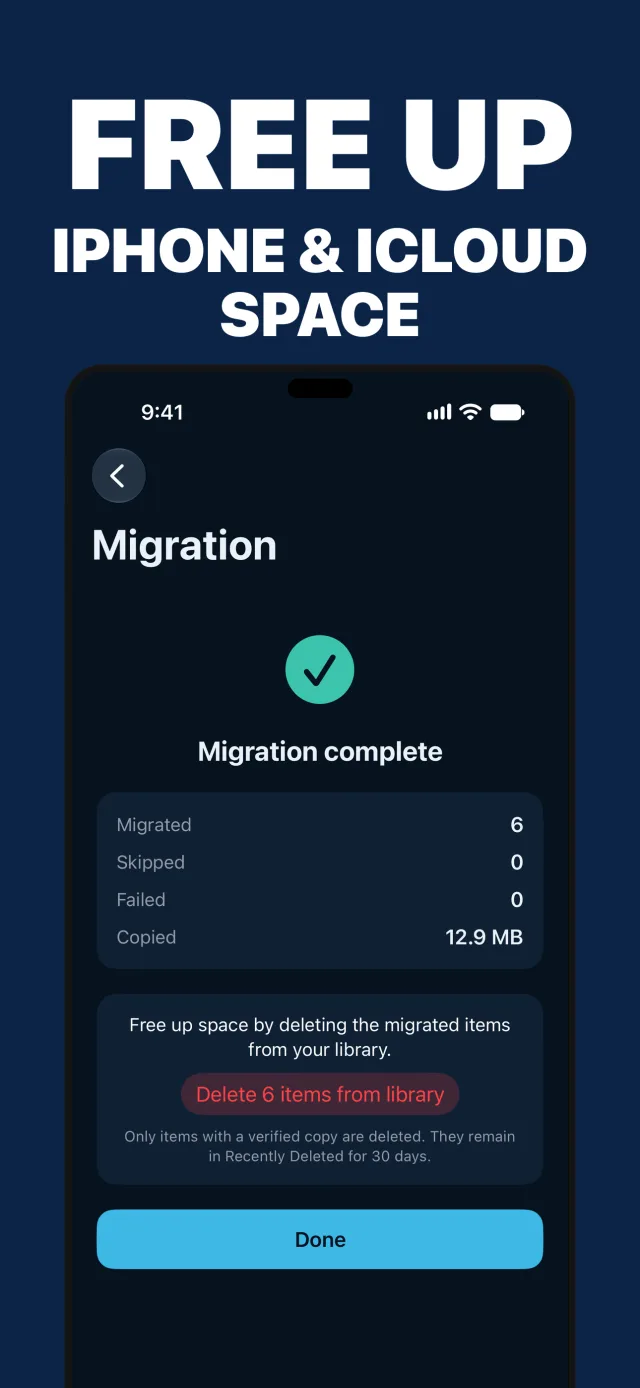
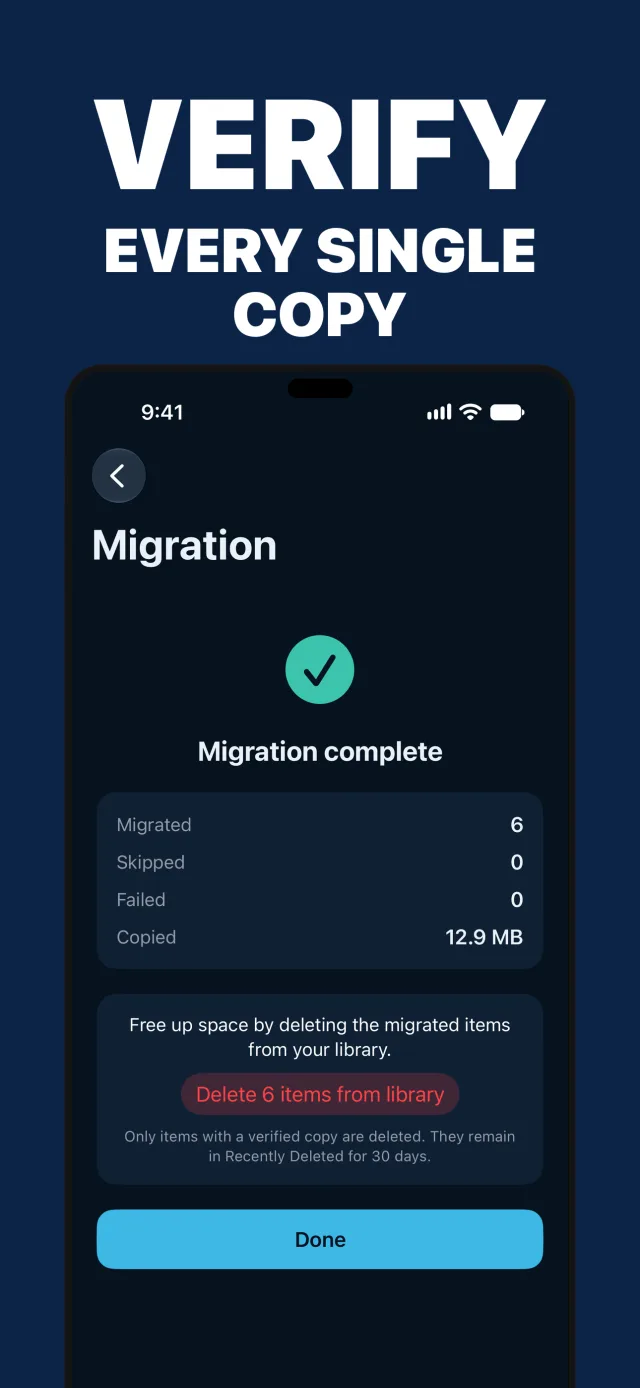
Every copy is checked before it counts. Re-runs skip what’s already done, and freeing up space afterwards is always your call.

New in 1.3

OneDrive comes aboard

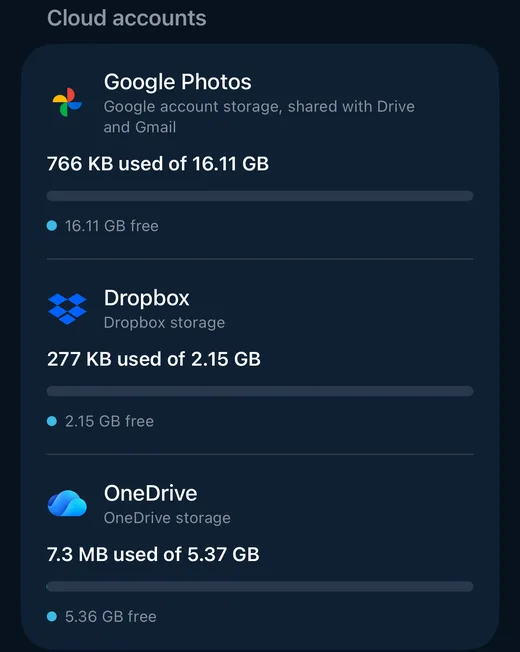
Microsoft OneDrive joins iCloud Photos, Google Photos and Dropbox, in both directions. Pick any OneDrive folder as a source, or send photos from anywhere else into a “Photo Migrate” folder on OneDrive, original dates included. After a verified copy you can move the OneDrive originals to its recycle bin, and the Storage tab shows your OneDrive space next to the others.
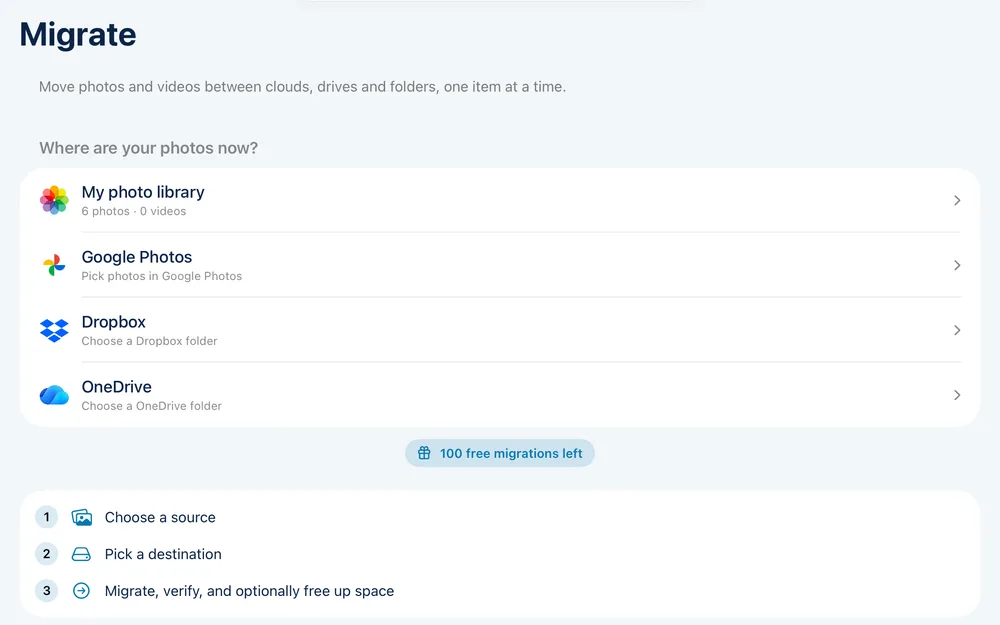
The Migrate tab on iPad listing four sources: My photo library, Google Photos, Dropbox and OneDrive
A fourth source
The Storage tab on iPhone showing used and free space for Google Photos, Dropbox and OneDrive
Three clouds, one view

On deck

See the whole trip

From checking your storage to verifying every copy.
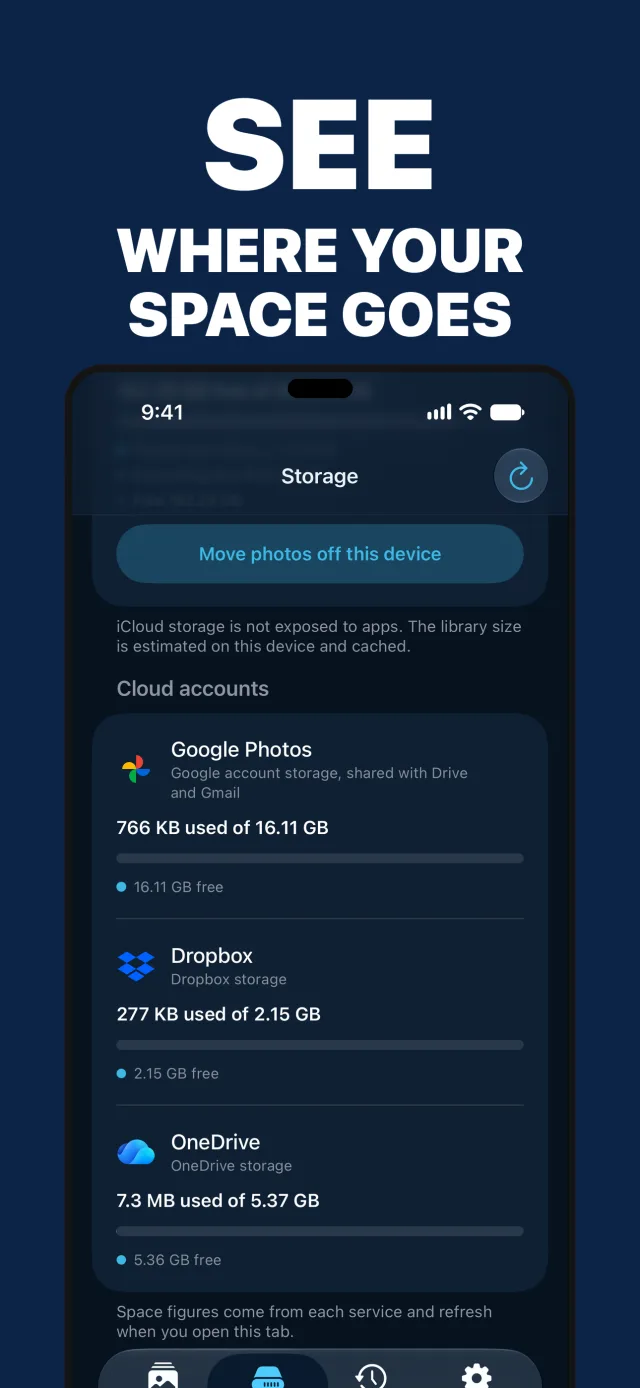
Storage tab showing the space used in Google Photos, Dropbox and OneDrive Select Photos screen with a grid of photos to pick from Destination screen listing USB drives, folders, Google Photos, Dropbox and OneDrive Migration results offering to delete migrated items from the library to free up space A migration in progress at 50 percent, streaming one photo at a time Migration complete with every copy verified Activity tab listing a finished migration from the photo library to On My iPhone

The manifest

Private by design

No servers
Photos travel directly from your device to your destination. Nothing ever passes through our servers, because there are none.
Verified
Each copy is checked at the destination before it’s counted as migrated.
Resumable
A manifest at the destination lets re-runs skip everything already migrated. Migrate in batches, stop any time.
Reversible
Deleting originals is optional, only offered for verified copies, and they stay in Recently Deleted for 30 days.
No personal tracking
No accounts and no advertising identifiers. Only anonymous usage analytics that never identify you, and you can turn them off in Settings. Read the two-minute privacy policy.

Fares

Try it free, pay once

Free

$0

  • Migrate your first 100 photos and videos
  • Every route, every destination
  • Full verification and resume support